Getting a new Wi-Fi extender sounds like a win, right? But if you’ve found yourself yelling at your screen while setting up the TP-Link RE705X, you’re not alone. I’ve been through the mess—login not working, the RE705X not connecting to router, weird orange LED blinking, firmware update failures, and yes, even those baffling WPS pairing failures. Below, I’m walking you through everything that went wrong for me and how I finally got it stable. If you’re struggling too, stick around—this isn’t your usual copy-paste guide.
TP-Link RE705X not connecting to router? Here’s how it wrecked my weekend
Setup should’ve taken five minutes, or so the quick-start card claimed. Instead, when I plugged in the RE705X and opened the Tether app, the thing couldn’t detect any 2.4GHz or 5GHz signal. Router was fine. Phone was fine. Extender? Not so fine. After multiple restarts, the device kept failing the “Connecting to your router” stage.
Weirdly enough, the RE705X WPS setup didn’t help either. Every time I pressed the WPS button on my router then on the extender, the LED flashed for a bit, then turned solid orange. That color isn’t friendly. The issue? The TP-Link extender firmware was outdated right out of the box.
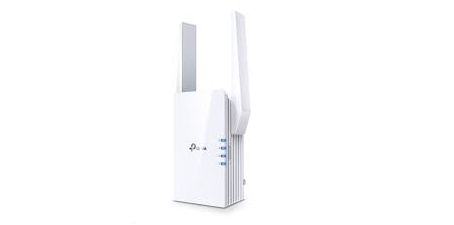 TP-Link RE705X firmware update failure and how I almost bricked it
Once I figured firmware might be the problem, I logged into the RE705X IP address manually—192.168.0.254—after switching my PC to a static IP. The web UI barely loaded. I clicked “Firmware Upgrade,” selected the latest RE705X firmware from TP-Link’s support site, and the screen froze. I thought it bricked.
Waited 10 minutes, refreshed, and boom—still alive. But the new firmware didn’t take. So I factory reset the extender, tried again, and it finally updated. Ever since, connection stability issues have gone way down. Lesson? Always update firmware first—manually if needed.
TP-Link RE705X LED blinking orange constantly? Here’s the real reason
After firmware was updated and the TP-Link RE705X connected successfully, I assumed I was done. Nope. The orange LED kept flashing every 10 seconds. Documentation said it meant “poor signal.” Thing is, the extender was literally three meters from the router.
What fixed it? Turning off OneMesh. Apparently, if your router doesn’t support TP-Link OneMesh fully, the extender keeps searching for a compatible link. Disabling it through the TP-Link web interface made the LED finally go green.
Also important: make sure your router isn’t on a DFS channel. If the 5GHz signal disappears randomly, your router might be automatically switching to a radar-sharing channel. That’s why your extender loses signal for no reason.
TP-Link RE705X login not working in Tether app or browser
At one point I couldn’t even get into the admin page. The TP-Link login password was correct, but every time I entered it, the page refreshed back to the login screen. The issue? Cache. Mobile app cache. Once I cleared the cache of the TP-Link Tether app and restarted it, login started working.
On desktop, I had to flush DNS and clear browser cache too. It’s odd, but if your RE705X web UI isn’t working or throwing you out constantly, your browser might just be holding on to bad data.
WPS not working on TP-Link RE705X? This fixed mine finally
If you’re pressing WPS on both devices and nothing happens—or worse, the LED flashes forever—then your router might have WPS disabled. That was my problem. Even though the WPS button was there physically, it was disabled in firmware due to some security policy updates.
Logging into the main router and re-enabling WPS fixed it. After that, WPS pairing with RE705X worked instantly. For many new routers, WPS is turned off by default to prevent brute force attacks, so double-check yours.
TP-Link RE705X keeps disconnecting from Wi-Fi randomly
The final issue I had? Random drops. Everything looked fine until, randomly, all devices connected to the RE705X network would get booted. Sometimes once an hour, sometimes once every few minutes. Super annoying.
Turned out, the extender was too close to the router. Overlapping signals confused it. Moving the RE705X extender to a slightly weaker signal zone (but still reachable) helped it stabilize. It now finds its sweet spot and holds it. Also, disabling smart connect helped prevent weird band-switching behavior.
RE705X is good, but only after a battle
Once everything was set, the TP-Link RE705X signal strength and Wi-Fi speed were actually great. I’m getting close to full router speeds even two floors up. But the setup experience? Brutal. TP-Link really needs to improve initial setup stability.
If you’re still stuck, try resetting the device, updating the firmware manually, checking WPS settings, clearing app/browser cache, and disabling OneMesh. Each one of those changes solved a separate issue for me.
At the end of the day, the RE705X Wi-Fi 6 extender does work, but you have to fight it first. Hopefully, this saved you some frustration and a few hours of your life.