Are you tired of gaming lag ruining your competitive edge? The ASUS GT-AC2900 is a powerhouse gaming router designed to eliminate latency, but even the best hardware can face issues. In this comprehensive guide, we’ll explore the most effective GT-AC2900 gaming lag solutions to ensure buttery-smooth performance in every match.
Whether you’re battling in Fortnite, Call of Duty, or League of Legends, a stable connection is non-negotiable. Let’s dive into the best ways to optimize your gaming network and banish lag forever.
Why Does the GT-AC2900 Experience Gaming Lag?
Even with top-tier hardware like the GT-AC2900, several factors can introduce lag spikes and high ping. The most common culprits include Wi-Fi interference, bandwidth congestion, and improper QoS settings. Understanding these issues is the first step toward a seamless gaming experience.
One major problem is signal interference from other devices. Microwaves, cordless phones, and even neighboring Wi-Fi networks can disrupt your connection. Additionally, if multiple devices are hogging bandwidth—streaming 4K videos or downloading large files—your online games will suffer.
Another overlooked issue is outdated firmware. ASUS frequently releases updates to improve router performance, and ignoring them can lead to stability problems. Let’s explore how to fix these issues step by step.
Info: Asus router setup instructions, Troubleshooting and FAQs
Optimizing QoS Settings for Lag-Free Gaming
The GT-AC2900 comes with a robust Quality of Service (QoS) feature that prioritizes gaming traffic. However, if not configured correctly, it can do more harm than good. To maximize performance, navigate to the router’s admin panel and enable Adaptive QoS.
Select Gaming as the priority mode to ensure your PC or console gets the lion’s share of bandwidth. You can also manually assign priority to specific devices, so your PlayStation 5 or Xbox Series X always gets the fastest speeds.
Avoid using Traditional QoS, as it may throttle speeds unnecessarily. Instead, rely on Adaptive QoS for dynamic adjustments based on real-time network demands. This small tweak can drastically reduce ping times and eliminate packet loss.
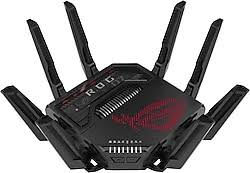
GT‑AC2900 gaming lag caused by ISP DNS issues
A hidden bottleneck I didn’t expect was default DNS servers. The ones from my ISP were slow and sometimes caused packet loss. Swapping them out for Cloudflare DNS (1.1.1.1) or Google DNS (8.8.8.8) made my router feel snappier.
DNS switching won’t make your ping drop by 100ms, but it does make game updates, server pings, and voice chat more responsive. It’s one of those things you don’t notice until you go back to the broken default settings.
Reducing Wi-Fi Interference for Stable Connections
A wired Ethernet connection is always the best option for competitive gaming, but if you must use Wi-Fi, proper setup is crucial. The GT-AC2900 supports dual-band Wi-Fi, so switch to the 5GHz band for less congestion and faster speeds.
Position your router centrally, away from thick walls and electronic devices that cause signal interference. If possible, invest in a Wi-Fi mesh system or range extender to eliminate dead zones. Additionally, changing the Wi-Fi channel to a less crowded one can prevent latency spikes.
For the ultimate stability, consider using ASUS AiMesh to create a seamless network. This feature allows multiple ASUS routers to work together, ensuring strong coverage throughout your home.
GT‑AC2900 AiProtection issues: When security slows your games
Asus ships the GT‑AC2900 with AiProtection security powered by Trend Micro. It’s useful, but sometimes overkill. It deep scans traffic, causing noticeable lag in competitive multiplayer games. I disabled the “Two-Way IPS” and “Malicious Site Blocking” — suddenly, frame drops and delay vanished.
If you’re only gaming and not browsing sketchy websites, you won’t miss that layer of protection, especially if you already run security on your PC or console.
Firmware Updates and Security Tweaks
Outdated router firmware is a leading cause of gaming lag. ASUS regularly releases patches to improve stability and security. To check for updates, log into the GT-AC2900 admin panel, navigate to Firmware Upgrade, and install the latest version.
While you’re there, disable unnecessary features like USB applications or VPN servers if you’re not using them. These can drain processing power and slow down your connection. Also, enable DoS protection to prevent malicious attacks that could disrupt your gameplay.
Info: How to Fix ASUS ROG Ally SD Card Issues
Wired vs. Wireless: Which is Better for Gaming?
Although the GT-AC2900 offers excellent Wi-Fi 5 performance, nothing beats a wired Ethernet connection for low-latency gaming. If possible, connect your gaming device directly to the router using a Cat6 or Cat7 cable.
For those who can’t run cables, Powerline adapters or MoCA setups can provide a near-wired experience. These alternatives use your home’s electrical wiring or coaxial cables to deliver a stable connection with minimal ping fluctuations.
Enjoy Lag-Free Gaming with the GT-AC2900
By optimizing QoS settings, minimizing Wi-Fi interference, keeping firmware updated, and choosing the right connection type, you can eliminate gaming lag on your GT-AC2900. This router is packed with gaming-centric features, and with the right tweaks, it can deliver a flawless experience.
Don’t let network issues hold you back—apply these fixes today and dominate every match with zero interruptions. Happy gaming!