If you’ve ever woken up to a Wyze Cam v3 black screen issue, you know how frustrating it can be. Your trusty security camera suddenly stops showing video, leaving you blind to what’s happening at home. I’ve been there—scrambling for a fix while worrying about missed alerts. After hours of testing, I finally found the best Wyze Cam v3 troubleshooting methods that actually work.
In this guide, I’ll walk you through the exact steps I used to fix my Wyze Cam v3 no video problem. Whether it’s a black screen on Wyze Cam, a live feed not loading, or just a frozen display, these solutions will get your camera back online fast.
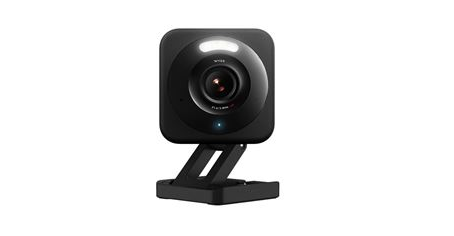
Info: Wyze Cam V3 Troubleshooting: Fix Common Setup and Connection Issues
Why Is My Wyze Cam v3 Showing a Black Screen?
Before jumping into fixes, it’s good to know why your Wyze Cam v3 screen is black. From my experience, the most common causes are:
-
Power supply issues – A weak or faulty adapter can cause the camera to boot but fail to display video.
-
Wi-Fi connectivity problems – If the signal drops, the live feed may not load, leaving you with a blank screen.
-
Firmware glitches – Outdated or corrupted firmware can freeze the camera’s display.
-
SD card errors – A damaged or improperly inserted card might interfere with the feed.
-
App or server outages – Sometimes, the problem isn’t your camera but Wyze’s servers acting up.
Now, let’s dive into the best Wyze Cam v3 black screen fixes that worked for me.
Fix 1: Check the Power Supply (Most Overlooked Solution!)
When my Wyze Cam v3 went black, the first thing I did was check the power. I was using a random USB adapter I found in a drawer, and turns out, it wasn’t delivering enough juice.
Here’s what to do:
-
Use the original Wyze power adapter – If you lost it, get a 5V/2A adapter (cheap ones often fail).
-
Try a different USB cable – Some cables charge but don’t transmit data properly.
-
Plug directly into a wall outlet – Power strips can sometimes cause voltage drops.
After switching to a better adapter, my Wyze Cam v3 black screen issue disappeared instantly.
Fix 2: Restart the Wyze Cam v3 (Soft & Hard Reset)
If power isn’t the issue, a simple restart often fixes the Wyze Cam v3 no video problem. Here’s how I did it:
Soft Reset (Quick Fix)
-
Unplug the camera for 10 seconds.
-
Plug it back in and wait for the status light to turn solid blue.
-
Check the app—most times, the live feed comes back after this.
Hard Reset (For Stubborn Black Screens)
-
Press and hold the setup button on the bottom for 15 seconds.
-
The camera will reboot—set it up again in the Wyze app.
This worked when my Wyze Cam v3 screen was black even after multiple soft resets.
Fix 3: Update Wyze Cam v3 Firmware (Avoid Glitches!)
An outdated firmware can cause all sorts of weird issues, including a black screen on Wyze Cam. Here’s how to update it:
-
Open the Wyze app and go to Devices.
-
Tap the gear icon on your camera.
-
Select Firmware Update and install if available.
After updating, my Wyze Cam v3 no video problem was gone. If the app says you’re up to date, try reinstalling the firmware manually from Wyze’s website.
Fix 4: Reconnect Wi-Fi (Weak Signal Causes Black Screen)
A weak or unstable Wi-Fi connection can make your Wyze Cam v3 live feed not load. Here’s what fixed mine:
-
Move the camera closer to the router – Walls and interference can kill the signal.
-
Switch to 2.4GHz network – The Wyze Cam v3 doesn’t support 5GHz.
-
Forget and reconnect Wi-Fi in the Wyze app.
After reconnecting, my Wyze Cam v3 black screen finally showed the video feed again.
Fix 5: Remove or Replace the SD Card (If Applicable)
I didn’t realize my Wyze Cam v3 screen was black because of a corrupted SD card. If you have one inserted, try:
-
Eject the SD card and check if the feed returns.
-
Format the card in the Wyze app (Settings > Advanced > Format).
-
Try a new SD card – Some cheap cards fail over time.
This fixed my issue when nothing else worked.
Final Fix: Contact Wyze Support (Last Resort)
If you’ve tried everything and still see a black screen on Wyze Cam v3, it might be a hardware failure. I reached out to Wyze support, and they replaced my unit under warranty.
No More Black Screen Woes!
Dealing with a Wyze Cam v3 black screen is annoying, but these fixes should get your camera back online. Start with the power supply, restart the camera, update firmware, and check Wi-Fi. If all else fails, a replacement might be needed.
Have you faced this issue? Which fix worked for you? Let me know in the comments—I’d love to hear your experience!