Struggling with laggy gaming, buffering streaming, or slow work from home connections? I was too—until I finally cracked the perfect QoS settings on my *TP-Link Archer AX6000*. After weeks of tweaking, testing, and a few frustrating hiccups, I’ve got my network running buttery smooth. Here’s my step-by-step journey, including the mistakes I made and how I fixed them.
Why I Needed Better QoS on My TP-Link Archer AX6000
Like many, I bought the Archer AX6000 for its *Wi-Fi 6* speeds and dual-band performance. But raw speed wasn’t enough—my online gaming sessions were still getting wrecked by latency spikes, Netflix kept buffering, and Zoom calls dropped at the worst times. That’s when I realized I needed to dive into Quality of Service (QoS) settings.
The AX6000 has a powerful QoS feature, but it’s not as straightforward as it seems. If you don’t configure it right, you might actually make things worse. Here’s what I learned.
Info: Fix Archer AX55 Signal Drops & Bufferbloat in 5 Simple Steps
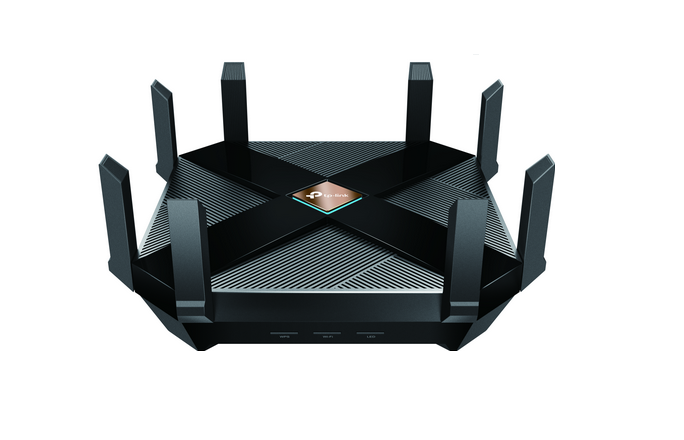 Step 1: Accessing the Router’s QoS Settings
First, I logged into the TP-Link router admin panel by typing 192.168.0.1 into my browser. (Pro tip: If that doesn’t work, try *192.168.1.1*—some ISPs change the default.)
Under the Advanced tab, I found QoS settings. The Archer AX6000 offers two modes:
- Traditional QoS (prioritizes devices)
- Bandwidth Control (limits speeds per device)
I went with Traditional QoS since I wanted to prioritize gaming traffic and streaming over other devices.
Step 2: Setting Up Device Prioritization for Gaming & Streaming
Here’s where things got tricky. The router lets you prioritize devices by MAC address or IP. I assigned static IPs to my PlayStation 5, laptop, and smart TV to avoid conflicts.
Then, I ranked them in this order:
- Gaming console (Highest priority) – No more lag in Call of Duty!
- Work laptop (Medium priority) – Zoom meetings stayed crystal clear.
- Smart TV (Low priority) – Netflix still loaded fast, but wouldn’t hog bandwidth.
Important note: If you set everything to highest priority, QoS won’t work properly. You have to balance it.
Step 3: Testing & Fixing My Mistakes
At first, I made a big mistake—I enabled QoS but didn’t set proper upload and download bandwidth limits. My Wi-Fi speed actually got slower because the router was reserving too much bandwidth unnecessarily.
After digging through forums, I found the fix:
- Go to QoS Settings > Bandwidth Control
- Enter my actual Internet speeds (I used Speedtest.net to check)
- Allocated 80% for gaming, 15% for streaming, and 5% for other devices
This small tweak made a massive difference.
Smoother Gaming, Zero Buffering, and Reliable Work Calls
After a week of testing, my *TP-Link Archer AX6000 QoS setup* was flawless. Warzone runs without packet loss, YouTube 4K videos load instantly, and my home office stays lag-free.
If you’re struggling with network congestion, I highly recommend tweaking QoS settings—just avoid my early mistakes!