Few things are as frustrating as a paper jam in your Canon LBP6230dw printer, especially when you’re in the middle of an important print job. If you’ve been struggling with constant paper feed issues, misaligned sheets, or mysterious printer errors, you’re not alone. Many users face these problems, but the good news is that most Canon LBP6230dw jams can be resolved with a few simple steps.
This guide will walk you through how to clear paper jams, prevent future issues, and keep your printer running smoothly. Whether it’s wrinkled paper, misaligned trays, or dirty rollers, we’ll cover every possible cause and solution. By the end, you’ll know exactly how to troubleshoot and fix paper jams like a pro.
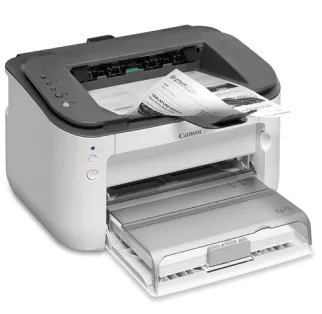
Common Causes of Canon LBP6230dw Paper Jams
Understanding why your Canon laser printer keeps jamming is the first step toward fixing it. Several factors contribute to paper feed problems, and identifying the root cause will save you time and frustration.
One of the most frequent culprits is incorrect paper loading. If the sheets aren’t aligned properly in the paper tray, they can skew and get stuck inside the printer mechanism. Another issue is dirty or worn-out rollers—over time, dust and debris accumulate, reducing traction and causing misfeeds.
Low-quality paper or sheets that are too thick can also lead to jams. The Canon LBP6230dw is designed for standard 80gsm paper, and using heavier stock may cause feeding issues. Additionally, moisture-warped paper or bent corners can trigger sensors incorrectly, making the printer think there’s a jam when there isn’t.
Step-by-Step Guide to Clearing Paper Jams in the Canon LBP6230dw
1. Turn Off and Unplug the Printer
Before attempting any fixes, always power off and unplug the printer to avoid electrical hazards. This also resets the printer sensors, which can sometimes resolve false jam alerts.
2. Open the Rear Cover and Remove Stuck Paper
Gently pull open the rear cover and inspect for any visible stuck paper. If you see a sheet, grasp it firmly but carefully and pull it out in the direction of the paper path. Avoid tearing the paper, as leftover fragments can cause further jams.
3. Check the Paper Tray and Input Area
Misaligned sheets in the paper tray are a common source of jams. Remove the tray, fan the paper stack to prevent sticking, and reload it neatly, ensuring the guides are snug against the edges. Overfilling the tray can also lead to feeding issues, so stick to the recommended *150-sheet capacity*.
4. Inspect the Fuser Unit (For Persistent Jams)
If jams keep happening near the printer’s exit area, the fuser unit might be the problem. Open the front cover and locate the green levers that release the fuser. Carefully pull it out and check for any scorched or torn paper stuck inside.
5. Clean the Printer Rollers
Dusty rollers are a major cause of paper feed errors. Use a lint-free cloth slightly dampened with water (never alcohol) to wipe the pickup rollers and separation pads. Let them dry completely before reassembling.
How to Prevent Future Paper Jams in Your Canon LBP6230dw
Use High-Quality, Dry Paper
Always store paper in a cool, dry place to prevent moisture absorption. Cheap or rough-edged paper increases the risk of jams, so invest in Canon-recommended paper for best results.
Adjust the Paper Guides Properly
Loose paper tray guides allow sheets to shift during feeding. Make sure they’re snug but not too tight—if the paper can’t move freely, it might crinkle and jam.
Regular Printer Maintenance
Schedule monthly roller cleaning to maintain smooth paper feeding. If the rollers appear cracked or glossy, they may need replacement. Also, keep the printer interior free of dust and debris.
Update Printer Firmware
Outdated printer firmware can sometimes cause feeding errors. Visit Canon’s official support site, download the latest update, and install it to ensure optimal performance.
Keeping Your Canon LBP6230dw Jam-Free
Dealing with Canon LBP6230dw paper jams doesn’t have to be a recurring nightmare. By following these troubleshooting steps and adopting good printer maintenance habits, you can minimize disruptions and enjoy smooth printing.
If jams persist despite your efforts, the issue might be a faulty sensor or worn-out parts requiring professional repair. However, in most cases, proper paper handling and regular cleaning will keep your printer running flawlessly.