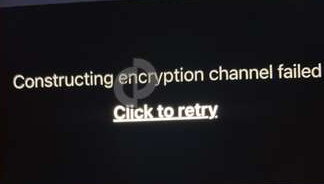
If your Geeni smart plug, bulb, or camera has suddenly thrown up the “constructing encryption channel” error, you’re not alone—and it’s beyond frustrating. I’ve been there, watching my Geeni app not working while trying to set up a new smart home device. Instead of connecting smoothly, it keeps flashing that strange message and nothing happens. After countless hours of trial, error, and research, I finally cracked it—and I’m going to walk you through how I fixed it.
Geeni “Constructing Encryption Channel” Error Meaning
Confusing at first, the error message “constructing encryption channel” popped up during my Wi-Fi setup when trying to add a Geeni plug. Secure connection attempts between the Geeni device and router were failing—that’s essentially what it means. The device can’t properly establish a secure link to your network, often caused by miscommunication between the phone, the Geeni cloud server, and the hardware.
Only after switching Wi-Fi modes and resetting my gear multiple times did the issue become clear.
Check 2.4GHz Wi-Fi Instead of 5GHz on Router
Crucial this is. Most Geeni smart plugs and Geeni LED bulbs only support 2.4GHz Wi-Fi, but modern routers broadcast both 2.4GHz and 5GHz. If your phone is on 5GHz during setup, the Geeni app setup can fail and throw the “constructing encryption channel” message.
How I fixed it? Logged into my router’s admin page, turned off the 5GHz temporarily, and reconnected my phone to the 2.4GHz band.
That little switch fixed the issue for me.
Factory Reset Your Geeni Device Properly
This step I kept skipping early on—huge mistake. Without doing a full reset, your Geeni smart plug not connecting problem will likely persist. Hold the power button for about 10 seconds until the LED blinks rapidly. That triggers the reset mode.
Then, in the app, instead of easy mode, I chose AP Mode from the top right—this mode worked far more reliably when the app was struggling with the constructing encryption channel Geeni problem.
Disable VPN, Private DNS, and Firewall Apps
Not obvious, but if you’re like me using a VPN for privacy or DNS filtering apps for faster browsing, the Geeni app stuck or Geeni pairing failed error might appear again and again. These tools block secure handshakes.
So I turned off NordVPN and set Private DNS to “Automatic” in Android settings. Only then did the Geeni encryption issue finally go away during setup.
It was messing with the encrypted handshake that Geeni needs.
Use Mobile Hotspot Trick (It Really Works)
Strange but effective. I used a second phone as a mobile hotspot with the same SSID and password as my home Wi-Fi (2.4GHz settings only). Connected the Geeni device to that hotspot first—worked perfectly.
Then, I switched it back to the original Wi-Fi using the app’s settings. For persistent Geeni connecting problems, this trick works when all else fails.
You’ll be surprised how fast the encryption handshake completes when isolated from your main router’s firewall.
Update the Geeni App to Latest Version
Outdated software on my phone caused weird behavior during setup. Although the Geeni app crashing wasn’t happening, it was showing the constructing encryption channel stuck message repeatedly.
After updating from the Play Store, the next device I tried paired in under a minute.
Trust me, it’s a boring step, but essential.
Switch From Easy Mode to AP Mode in Geeni App
Easy mode looks convenient, but it often fails on unstable Wi-Fi or older phones. With AP Mode, the app connects directly to the Geeni plug Wi-Fi first, and then hands off control to your router.
Once I selected AP Mode instead of auto-connect, my Geeni device setup error finally vanished.
Takes a few extra steps, but the difference was night and day.
Check for MAC Address Filtering on Your Router
Hidden deep in my router settings was MAC address filtering, which blocked the Geeni plug silently. Unless you’ve manually added allowed devices, some routers block unknown MACs by default.
Adding the Geeni device’s MAC address manually to the allowlist made the encryption channel error disappear instantly.
Might seem technical, but that step alone resolved hours of failed setups.
Don’t Use 802.11ax Mode for Geeni Devices
Fancy new Wi-Fi 6 routers run 802.11ax by default, but most Geeni smart home devices still require 802.11n or g. In my case, the router was too advanced for the Geeni plug.
Switched the wireless mode from “ax” to “n” in the router settings—and just like that, no more constructing encryption channel Geeni stuck message.
Old-school worked better here.
Change DNS Settings on Router Temporarily
I suspected that DNS lookups were slowing or failing for Geeni’s cloud server handshake. I changed the default ISP DNS to Google’s (8.8.8.8 and 8.8.4.4) just to test. The app immediately skipped the stuck stage.
Later, I switched back to my ISP’s DNS—problem didn’t return. Some Geeni devices, it seems, don’t like non-standard DNS settings.
A quick and easy fix worth testing.
Geeni Smart Plug Not Working After Setup?
Even after getting past the constructing encryption channel error, sometimes the Geeni smart plug won’t turn on remotely. That’s usually a cloud issue—not your Wi-Fi.
I fixed that by deleting the plug from the app and re-adding it. Then I bound it to my Geeni account and disabled the “power outage recovery” mode.
Everything worked smoothly after that.
Geeni App Setup Failed? Try Another Phone
Yes, it’s weird, but some Android phones mess with app permissions and background tasks. On my Samsung, I couldn’t get past the encryption channel step. Switched to an older iPhone—setup worked immediately.
Afterward, I could control the device from either phone.
Sometimes, it’s not your plug—it’s your phone.
Geeni Encryption Issue Still Stuck? Final Tips
Here’s what worked after all else failed: I created a guest Wi-Fi network (2.4GHz only), no password, no filtering. Then added the device via AP Mode. Once added, I reconnected it to my main network using the Geeni app.
Takes 5–10 mins, but it gets the job done.
Why the “Constructing Encryption Channel” Error Happens on Geeni Devices
To summarize in plain terms: the device tries to talk to the Geeni cloud using encrypted messaging but gets blocked by either your router, your phone settings, or outdated firmware. That’s why so many users get Geeni stuck on encryption and can’t figure out what’s wrong.
But now you know better.
You’re Not Alone With Geeni Connection Errors
Multiple times I almost threw the Geeni plug in the trash—until I finally found what works. Whether it’s Wi-Fi frequency mismatch, firewall filters, or just a buggy app version, the “constructing encryption channel” message can be beaten.
Hope this guide helped. Try each step slowly, and one of them will almost certainly work for your setup.
If not, well, at least you now know more than most customer service agents do.