So, you just got a new Netgear modem and can’t wait to get online—only to realize the setup isn’t as plug-and-play as you hoped. Trust me, I’ve been there. After wrestling with blinking lights, random disconnections, and confusing modem vs router debates, I finally got mine working perfectly.
This guide covers everything from unboxing to troubleshooting, including why your modem keeps dropping connection and how to fix that annoying blinking red light. Let’s get your internet up and running without the headache.
Unboxing and Connecting Your Netgear Modem
First things first, make sure you have everything: the Netgear modem, power adapter, Ethernet cable, and the coax cable (if you’re using cable internet). If you’re replacing an old modem, double-check that your ISP supports your Netgear model—some, like Xfinity, have strict approved modem lists.
I made the mistake of assuming any modem would work, only to find out mine wasn’t Spectrum-compatible. A quick call to my ISP saved me hours of frustration.
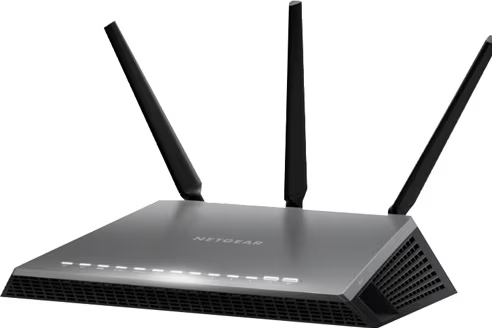
Info: Netgear Nighthawk Setup & Troubleshooting
Powering Up and Initial Setup
Plug in the modem power supply and connect the coax cable securely. If the modem lights don’t turn solid within a few minutes, you might have a signal issue. Mine stayed blinking for ages until I realized the coax wall port was loose.
Next, connect your computer via Ethernet for the most stable setup. If you’re using Wi-Fi, check the default network name and password on the modem label. Some Netgear modem models even have a handy mobile app for setup—way easier than dealing with a web interface.
Why Is My Netgear Modem Blinking Red? (And How to Fix It)
Ah, the dreaded blinking red light. This usually means no internet signal, and in my case, it was because my ISP hadn’t activated the modem yet. A quick phone call fixed it, but other times, it could be:
-
A loose coax cable (check both ends!)
-
Outdated modem firmware (log in to the admin panel and update)
-
Overheating (yes, modem overheating is real—keep it in a cool spot)
If the light stays red after 10 minutes, try a modem factory reset. Hold the reset button for 30 seconds, then wait. Still nothing? Might be time for a replacement.
Fixing a Netgear Modem That Keeps Disconnecting
Nothing’s worse than your modem dropping connection mid-game or during a work call. After dealing with this for weeks, I figured out a few fixes:
-
Check for signal interference—cordless phones, microwaves, and even fish tanks can mess with your connection.
-
Update the firmware—my Netgear modem setup was glitchy until I manually installed the latest update.
-
Try a different power outlet—weirdly, this worked once when my modem kept rebooting randomly.
If all else fails, your modem might be dying. Modem lifespan is usually 3-5 years, so if yours is older, it might be time for an upgrade.
Info: Netgear router keeps disconnecting..
Optimizing Your Netgear Modem for Gaming and Streaming
If you’re into gaming or 4K streaming, a basic setup won’t cut it. Here’s what I did to reduce lag:
-
Enable QoS (Quality of Service) in the modem settings to prioritize gaming traffic.
-
Use a DOCSIS 3.1 modem if your ISP supports it—way faster and more stable.
-
Avoid Wi-Fi congestion by switching to a less crowded channel.
I also learned that bridging my modem (disabling its built-in router) and using a separate gaming router made a huge difference.
Is Your Netgear Modem Working Now?
Setting up a Netgear modem isn’t always smooth, but once it’s running, you’ll forget the struggle. If you’re still stuck, check Netgear’s support site or call your ISP—sometimes the issue is on their end.
And hey, if your modem still won’t connect, maybe it’s time to look into the best modem for gaming or a *Wi-Fi 7-compatible* upgrade. Either way, hope this guide saved you some time (and sanity).
Got a Netgear modem setup horror story or fix I missed? Drop it in the comments—I’d love to hear how you got yours working!