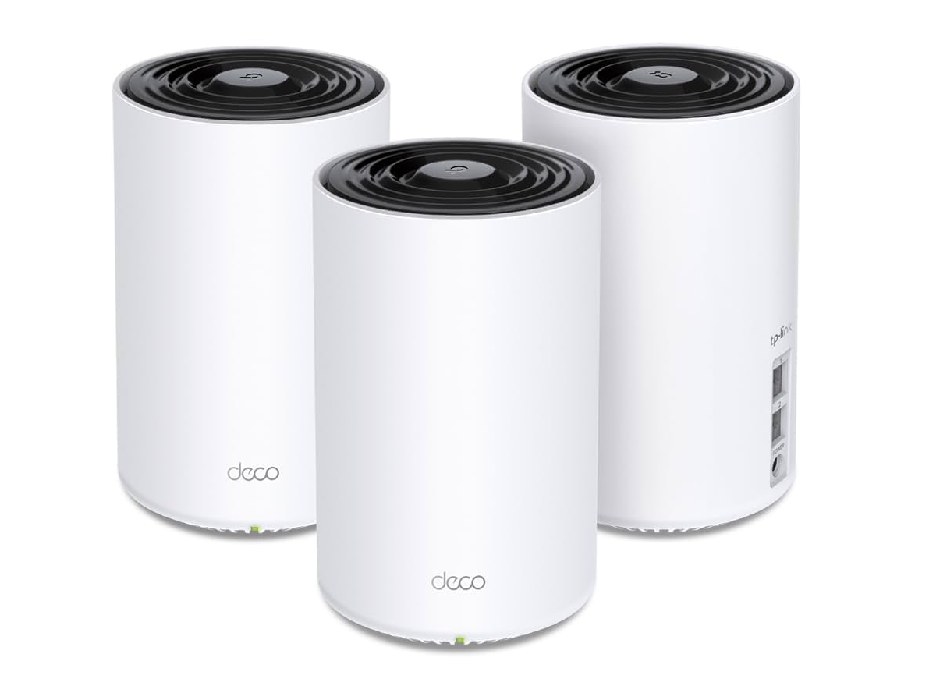
I’ve always believed in upgrading to better tech. That’s why a few months ago, I picked up the TP-Link Deco X68 mesh Wi‑Fi system, excited for fast speeds and flawless coverage. But things didn’t go quite as planned. If you’re facing TP-Link Deco X68 backhaul problems, you’re not alone—what seemed like a dream setup ended up being a confusing mess of ethernet backhaul not working, slow speeds on satellite nodes, and Deco X68 drops connection randomly. I’ll walk you through everything I tried, the problems I hit, and what actually worked to fix it.
TP-Link Deco ethernet backhaul not working even with good cables?
Thought it’d be plug-and-play I did—connecting my second Deco X68 unit using a Cat 6 cable. But when I looked into the Deco app, it still showed wireless backhaul instead of ethernet backhaul active. I double-checked the wiring, swapped ports, even reset both units. Still, nothing.
After digging through forums and subreddits, I discovered the TP-Link X68 ethernet backhaul setup can be picky. Both Decos need to be reset fully before wired backhaul kicks in. I unplugged both, held the reset buttons for 10 seconds, and reconnected them via LAN before re-adding them to the app. Only after doing this did the app finally switch from wireless connection to “Ethernet” in the backhaul status TP-Link menu.
TP-Link Deco X68 drops connection randomly—no fun during meetings
You think you’ve fixed one thing, and boom, another shows up. During video calls, I’d suddenly lose connection, even when near a satellite unit. It wasn’t interference—channels were auto-configured. What I found was that Deco X68 loses internet intermittently due to its default band steering aggressively shifting devices between 2.4GHz and 5GHz.
To stabilize things, I turned off fast roaming Deco app setting and disabled mesh technology for individual devices like my laptop. That helped. My laptop now sticks to the 5GHz band and doesn’t hop unnecessarily. For those who experience Deco X68 disconnects every few hours, adjusting those settings manually can make a huge difference.
TP-Link Deco satellite slow speed via ethernet—what’s causing the bottleneck?
At first, I blamed my ISP. But speed tests showed full speeds at the main router while the satellite, even on wired backhaul, showed under 100 Mbps. The issue? I had connected the satellite through a wall ethernet jack that was wired with older Cat 5 cabling, which maxes out at 100 Mbps.
I replaced it with shielded Cat 6 and connected it directly to the router—suddenly, Deco X68 slow backhaul speed was gone. It now ran at full gigabit speed. Sometimes, the issue isn’t the device itself, but the ethernet cable type for Deco backhaul you’re using.
Deco X68 mesh setup issues with Starlink or CGNAT networks
I use Starlink RV dish, and while speeds were okay, the mesh system would sometimes go offline at night. After some research, I learned TP-Link Deco with CGNAT can fail when IP addresses rotate. I had to set the main Deco X68 in Access Point mode instead of router mode to bypass Starlink’s double NAT. Since then, no disconnects at all.
Another trick? If you’re dealing with TP-Link Deco not detecting ethernet backhaul, always make sure the main Deco is connected via the WAN port, and satellites via LAN. Otherwise, it defaults to wireless.
TP-Link Deco X68 ethernet backhaul setup guide that actually works
Here’s what worked for me, step by step (and not some vague setup wizard stuff):
-
I reset all Deco units—held down the reset button until the LED turned yellow.
-
Opened the Deco app, added the main unit via Wi‑Fi and connected it to the modem with a Cat 6 cable.
-
Before adding the second Deco, I wired it directly to the main unit via LAN and only then powered it on.
-
Once it blinked blue, I added it using the app. It instantly showed wired backhaul this time.
Even if you’re just installing a two-pack, this ensures that TP-Link Deco X68 ethernet backhaul works right from the start.
TP-Link Deco firmware update not solving backhaul problem?
I tried updating the firmware, hoping it’d fix the unstable backhaul. But TP-Link Deco X68 firmware update only worked after I rebooted the network. Just installing the update didn’t apply changes properly until I manually restarted each Deco. Then, I checked again—and finally, the backhaul connection held steady.
Another trick I learned: if you’re stuck with Deco X68 backhaul keeps switching to wireless, disable the auto-optimization feature in the app. It’s supposed to be smart, but honestly, it was causing chaos.
TP-Link Deco X68 vs Deco X90 backhaul stability
Just for fun, I tried comparing it with my friend’s Deco X90. Despite having tri-band and better antennas, Deco X90 ethernet backhaul setup required the same process. However, the X90 seemed less sensitive to cable types or firmware bugs. If you’re shopping around, know that Deco X68 vs Deco X90 backhaul reliability might be a factor worth considering—X68 is great, but it’s more setup-sensitive.
Why TP-Link Deco X68 not suitable for homes with old wiring
Something I learned the hard way—if your home uses outdated electrical wiring or old LAN ports, you may face endless Deco X68 mesh slow connection issues. The system assumes your LAN is up to modern spec. So before investing in mesh Wi-Fi, make sure your ethernet backhaul environment is gigabit-ready. I had to upgrade two wall sockets and a switch to get full speed.
No More Deco X68 backhaul not working Headaches
Now, with everything hardwired and the right settings applied, my Deco X68 ethernet backhaul network runs flawlessly. No more disconnects, slow speeds, or backhaul confusion.
So if you’re stuck with TP-Link Deco X68 backhaul problems, don’t just reset things endlessly. Look at cables, firmware, router mode, and even how you add devices. And don’t trust “auto-detect”—take control of the setup.
It took me weeks of trial and error, but now it works better than I expected. Hope this guide spares you the same hassle.