Is your Netgear X6 constantly dropping connections? You’re not alone. Many users report that heat buildup in the Netgear R8000 (also known as the X6) leads to frustrating Wi-Fi dropouts and slow internet speeds. In this comprehensive guide, we’ll explore why the Netgear X6 overheating issue happens, how it affects performance, and—most importantly—how to fix it for good.
Why Does the Netgear X6 Overheat?
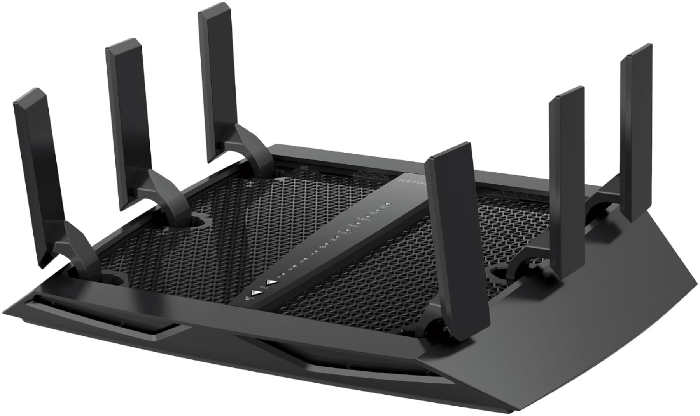
The Netgear R8000 is a powerful tri-band router designed for high-speed internet, but its performance comes at a cost. The router’s processor and radio amplifiers generate significant heat, especially when handling multiple 4K streams, gaming traffic, or large file downloads. Unlike some modern routers with advanced cooling systems, the X6 relies on passive ventilation, which can be insufficient under heavy loads.
When the router overheats, it throttles performance to prevent damage, leading to signal drops, lag spikes, and even complete connection failures. If you’ve noticed your Wi-Fi cutting out during peak usage times, excessive heat is likely the culprit.
Info: Netgear Nighthawk Setup & Troubleshooting
Signs Your Netgear X6 Is Overheating
How can you tell if heat is causing your Netgear X6 dropouts? Watch for these key symptoms:
-
Frequent disconnections – If your devices keep losing Wi-Fi signal without explanation, the router may be overheating.
-
Slow internet speeds – When the processor gets too hot, it slows down to cool off, reducing your network performance.
-
Unstable gaming or streaming – Buffering and high ping during intense sessions often point to thermal throttling.
-
Hot exterior – If the router’s casing feels excessively warm to the touch, it’s a clear sign of poor heat dissipation.
Learn: How to setup wifi extender
Top Fixes for Netgear X6 Overheating Issues
1. Improve Ventilation Around the Router
Since the Netgear X6 lacks active cooling, proper airflow is critical. Avoid placing it inside closed cabinets or near other heat-producing electronics. Elevate the router on a stand or mount it vertically (if possible) to allow heat to escape more efficiently.
2. Use a Cooling Pad or External Fan
If your router still runs hot, consider adding an external cooling solution. A small USB fan or laptop cooling pad placed near the X6 can significantly reduce operating temperatures. Some users even mod their routers with heat sinks for better thermal management.
3. Reduce Wireless Load
The Netgear R8000 supports multiple devices simultaneously, but pushing it to its limits increases heat output. Disconnect unused smart home gadgets, limit background downloads, and prioritize QoS settings for essential tasks like gaming or video calls.
4. Firmware Updates and Factory Reset
Outdated firmware can cause the router to work harder than necessary, leading to overheating. Check for the latest Netgear firmware update and install it. If problems persist, a factory reset can clear any software-related issues contributing to excessive heat.
5. Consider a Router Replacement (If Necessary)
If your Netgear X6 continues overheating despite all fixes, it might be time for an upgrade. Modern *Wi-Fi 6 routers* like the Netgear RAX120 or *Asus RT-AX88U* offer better heat management and more stable connections.
Info: Netgear router keeps disconnecting..
Tri-band router thermal throttling isn’t rare—it’s underreported
Hiding the real issue, support forums do. I read dozens of posts titled “Netgear X6 Wi-Fi keeps dropping” without a single mention of heat. But once I opened the case and felt how warm the internal chipset was? I knew that overheating router components were the culprit. Even more telling was how fast the unit cooled with basic airflow—like it was desperate for it.
Often confused for firmware problems or device interference, router heat-caused disconnections go undiagnosed. It’s a flaw many users miss until the device becomes unusable during long sessions. High ambient temperature router errors become more frequent during summer months, especially when ventilation is poor.
Keeping Your Netgear X6 Cool
Heat-related dropouts on the Netgear R8000 are frustrating but fixable. By improving ventilation, reducing network strain, and possibly adding external cooling, you can restore stable Wi-Fi performance. If all else fails, upgrading to a newer router may be the best long-term solution.