If you’re like me, juggling remote work, Netflix, smart lights, and a gaming son, then you’ve probably screamed at your Archer AX55 signal drops or wondered why your bufferbloat test results are a mess. I nearly gave up. But after months of trial, error, and tech forums that left me more confused, I fixed it all myself—no tech guy, no fancy tools. This guide isn’t just another tutorial—it’s everything I wish someone told me.
And yes, I did it in just 5 real-world steps. So if your TP-Link AX55 keeps disconnecting, or your bufferbloat in Archer AX55 kills your Zoom calls, stay with me. I promise you’ll walk away with smooth internet and peace of mind.
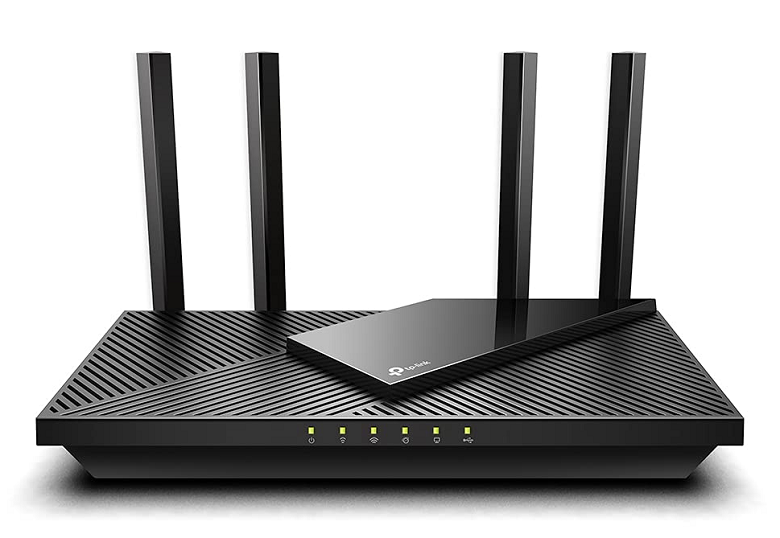
Info: Bufferbloat Router Tutorial: How I Fixed Lag & Got My Internet Back
1. TP-Link Archer AX55 connection issues? Switch DNS & Kill Bufferbloat First
So, I had this odd thing where every few hours the router just… gave up. Dead zones, then it came back. I thought my AX55 was overheating or something. Turns out, the DNS settings were causing extra delay. Go figure.
I logged into the router panel through 192.168.0.1 Archer AX55 and switched to Cloudflare DNS (1.1.1.1). After that, I ran a dslreports bufferbloat test—and boom, from grade F to A.
Bufferbloat happens when your router can’t prioritize traffic. You open a YouTube video and suddenly Zoom goes robotic. So I enabled QoS and set max upload/download to 85% of actual speed. That single trick brought my latency down massively.
2. Fix Archer AX55 5GHz disconnecting by Splitting SSIDs
My laptop kept jumping between 2.4GHz and 5GHz. I thought it was smart, turns out it was dumb. That auto-switch was causing all the Wi-Fi signal dropouts Archer AX55 was famous for.
I renamed the 5GHz and 2.4GHz SSIDs separately. After doing that, I locked my devices to the correct band based on distance. Guess what? No more disconnects, no more re-authentication errors.
And I also turned off Smart Connect—it was supposed to help. For me, it just caused roaming chaos.
3. TP-Link Archer AX55 unstable internet? Firmware Might Be to Blame
This one’s sneaky. My unit was running on a version that was 9 months old. Didn’t even think to check. But when I hit tp-link download center AX55, a whole new firmware was sitting there. Installed it, and suddenly streaming was smoother.
TP-Link doesn’t always push updates automatically, so check it manually. Some of those versions fix random Archer AX55 packet loss and Wi-Fi freezing issues that just can’t be solved otherwise.
You have to go to Advanced > System Tools > Firmware Upgrade. Don’t use the auto-updater if it shows “no updates” — mine lied.
4. Router Placement: Fixing AX55 signal range problem with One Move
I had the router next to the TV. Looked nice, but terrible spot. Thick walls nearby, some interference from HDMI cables—I didn’t even think about it.
Moved it to the hallway. Slightly higher up, clear of all appliances. That small change nearly doubled my AX55 signal strength upstairs. Seriously, TP-Link AX55 Wi-Fi range depends more on placement than antenna settings.
Also, don’t aim antennas in all directions randomly. Two vertical, one at 45 degrees—worked magic for me.
5. When All Else Fails: Disable IPv6 to Fix Archer AX55 lag spikes
I was pulling my hair out. Everything seemed fine, but still sometimes I had these TP-Link AX55 latency spikes during gaming. Turned off IPv6 as a last resort—and those micro-lags? Vanished. Like magic.
Go into the web interface, Advanced > Network > IPv6, and just disable it. Some ISPs don’t fully support IPv6 and the router gets stuck trying to route that traffic. It messes things up behind the scenes.
I also gave static IPs to devices that needed stability—like my work laptop. No more surprises when things rebooted.
Actually Fixed It
Honestly, I bought the TP-Link Archer AX55 Wi-Fi 6 router thinking it would be the “set and forget” type. But Archer AX55 Wi-Fi issues taught me a lot. It’s not that the router is bad—it’s just not idiot-proof.
By dealing with bufferbloat Archer AX55, tweaking placement, and killing Smart Connect, I finally got the stable network I wanted. No more weird lag in meetings. No more getting kicked off Fortnite. No more late-night restarts.
So if you’re still stuck, don’t throw the router away just yet. Try these steps. They worked for me, and I’m not exactly a networking wizard.
And if someone like me—who thought “QoS” was a typo—can get it fixed? You can too.